> For the complete documentation index, see [llms.txt](https://docs.notyfire.io/llms.txt). Markdown versions of documentation pages are available by appending `.md` to page URLs; this page is available as [Markdown](https://docs.notyfire.io/key-concepts/notifications.md).

# Notifications

The **Notyfire notification mechanism** is designed to ensure that the right information reaches the right people at the right time. The system uses a sophisticated flow to trigger, filter, and deliver alerts across multiple communication channels.

<figure><img src="https://3397741173-files.gitbook.io/~/files/v0/b/gitbook-x-prod.appspot.com/o/spaces%2FdrLTnMUrwW7mgtbMpCLm%2Fuploads%2FVzIJCVTF8CL4HJ1IRaAj%2F05-26-notyfire-flow.png?alt=media&amp;token=c2b59e08-1628-4830-a2e4-6c5bccd70eb3" alt=""><figcaption></figcaption></figure>

### Notification Triggers

Notifications are initiated by two primary types of triggers:

#### Action Triggers

These are event-driven triggers that fire when a user or the system interacts with an announcement:

* **Create:** A notification is generated the moment a new announcement is published.
* **Add Update:** Triggered when new comment is added to an existing announcement.
* **Change Status:** Fired when an announcement transitions between states (e.g., moving from PLANNED to IN PROCESS).

#### Time Triggers

These are scheduled alerts based on temporal logic:

* **Reminder:** A notification is triggered automatically when a specific scheduled time is reached.

### Notification Carriers

Once a trigger occurs, the system routes the notification through different "carriers" - logic objects that determine who should receive the alert based on system configuration and user preferences.

<table><thead><tr><th width="196.5546875">Carrier</th><th>Description</th></tr></thead><tbody><tr><td>Subscriptions</td><td>This is the most common way to receive notifications. See details here: <a data-mention href="/key-concepts/subscriptions.md#types">Subscriptions</a></td></tr><tr><td>Forced Notifications</td><td><p>These are direct notifications designed to bypass standard subscription filters. They able you that important information reaches also to Virtual users who don't have own subscriptions. See details here: <a data-mention href="#forced-notifications">#forced-notifications</a></p><p></p></td></tr><tr><td>Watchings</td><td>This carrier is linked to the <strong>"watching"</strong> functionality. If a user is watching a specific announcement, they will receive notifications for any <strong>updates</strong> or <strong>status changes</strong> made to that item. Users can configure a specific channel during adding "watching".</td></tr><tr><td>Reminders</td><td>Reminders are exclusively linked to <strong>Time Triggers</strong>. They are used to alert users when a scheduled event is about to occur or has reached its start time. Like watchings, users can select a preferred channel for <strong>Announcements reminders</strong> in their personal settings.</td></tr></tbody></table>

### Processing

Before a notification reaches the user, it passes through a final refinement stage: **deduplication** to prevent alert fatigue. This ensures that if multiple carriers (e.g., both a private subscription and a "watching" status) trigger the same alert for the same event, the user receives only one notification.

### Delivery

The final announcement notification is sent through the user's configured destination.&#x20;

#### Notification channels

A key part of the Subscriptions are notification channels shared across both the Announcements and Development modules. Once a channel is defined at the bottom of the subscription page, it can be utilised for any subscription entry regardless of the module. Available channel types include:

| Notification Channel | Example                                      | Description                                                                                   |
| -------------------- | -------------------------------------------- | --------------------------------------------------------------------------------------------- |
| SMS                  | `48987654321`                                | Urgent, mobile-direct alerts.                                                                 |
| Mail                 | `user@email.com`                             | Standard email notifications for detailed updates.                                            |
| MS Teams             | `https://prod-250.westeurope.logic.azure...` | Automated messages sent directly to MS Teams channel via MS Workflow in Adaptive Card format. |
|                      |                                              |                                                                                               |

{% hint style="info" %}
**MS Teams Notification channel - without replies**

This channel required existing MS Workflow which post message to a Teams channe&#x6C;**.** \
To do this you can use workflow template named **Send webhook alerts to a channel.** Example below.<br>

**TIP:** To remove info: **"***... used a Workflow template to send this card. Get template*” from published adaptive card you need to create copy of your workflow using "*Save As"* option in workflow details view.

<img src="https://3397741173-files.gitbook.io/~/files/v0/b/gitbook-x-prod.appspot.com/o/spaces%2FdrLTnMUrwW7mgtbMpCLm%2Fuploads%2FQ5CyiSJxhXzZpAT22Yhg%2FMS%20Workflow%20post.png?alt=media&amp;token=4137b738-1674-4ced-9308-15da4ac351f0" alt="" data-size="original">
{% endhint %}

{% hint style="info" %}
**MS Teams Notification channel - with replies**

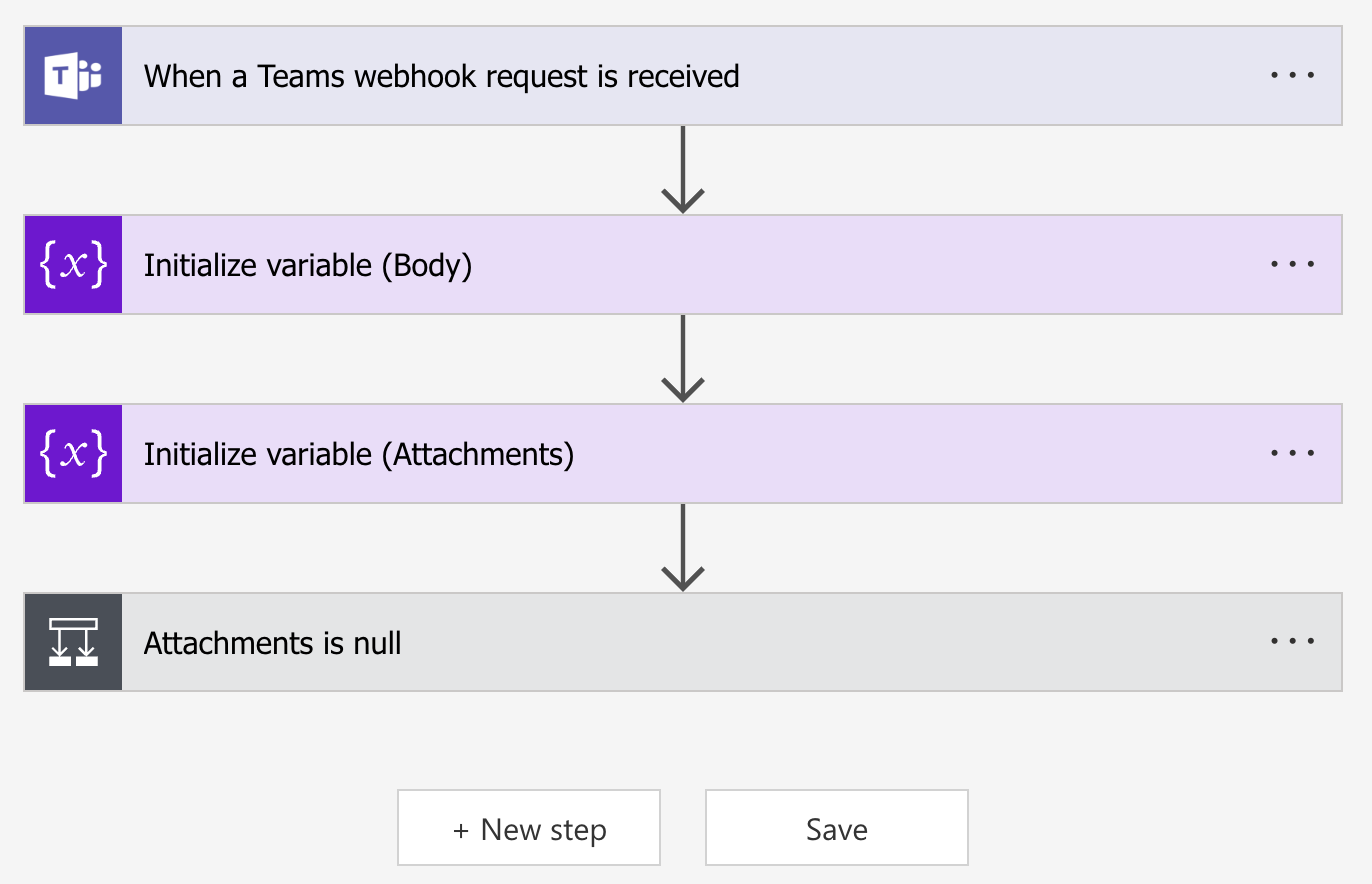
If you want use replies in MS teams in case of announcement **status change** and **update**, you need to extend Workflow above to return message ID to Notyfire and create additional Workflow to handle replies.<br>

1. Extended Workflow for create post should looks like that:

<img src="https://3397741173-files.gitbook.io/~/files/v0/b/gitbook-x-prod.appspot.com/o/spaces%2FdrLTnMUrwW7mgtbMpCLm%2Fuploads%2FmTG0hohFgNW23xJEd2LE%2FScreenshot%202026-04-11%20at%2014.58.02.png?alt=media&amp;token=3a1bb295-ff32-4531-a7fe-442729b1b545" alt="" data-size="original">

2. Additional Workflow to handle replies:\ <img src="https://3397741173-files.gitbook.io/~/files/v0/b/gitbook-x-prod.appspot.com/o/spaces%2FdrLTnMUrwW7mgtbMpCLm%2Fuploads%2FzuosrDyxOnLHCkf8FleH%2FScreenshot%202026-04-11%20at%2015.01.19.png?alt=media&amp;token=8294940b-5ce9-49df-92c7-ad14ce5a5316" alt="" data-size="original"><br>

<mark style="color:$danger;">**PREMIUM LICENSE NEEDED**</mark>

Step **Response** requires Power Automate Premium License. \
Pricing details you can find here: <https://www.microsoft.com/en-us/power-platform/products/power-automate/pricing>
{% endhint %}

### Forced notification

**Forced Notification** is a direct delivery feature designed to ensure critical information reaches specific stakeholders by **bypassing the standard subscription-based filtering logic**.

#### Core Purpose and Use Case

This feature is primarily intended for users with the **Subscriber** role who have been granted specific permissions to use this mechanism. Its main purpose is to coordinate communication with **Virtual account types -** users who do not use the Notyfire web application directly but must remain informed about system statuses.

{% hint style="info" %}
In mail notification triggered by Forced Notification, **Open Announcement** button **is hidden**.
{% endhint %}

{% hint style="info" %}
In addition to the publisher role, permission to use this functionality is required. If the user does not have this permission, the **Forced Notification** section **is not visible**, and using Announcement Templates with defined recipients **will not result in sending notifications** to them.
{% endhint %}

#### Notification Logic

Unlike regular notifications that rely on individual or team-defined filters, Forced Notifications are routed through a direct bypass:

* **Subscription Bypass:** The system ignores personal or team filters, ensuring the message is delivered regardless of the recipient's standard settings.
* **Global Channel Usage:** The mechanism utilizes the **Global Notification Channel** defined in a user's account attributes.
* **Virtual Account Defaults:** For virtual users, the platform defaults to **Mail** as the main notification channel.

#### Configuration in the Announcement Popup

Authorized users can configure these alerts directly within the Announcement creation or edit screen by expanding the **"> Forced notification"** section.

* **Recipients:** Define specific recipients directly in this section to ensure they are explicitly targeted.
* **Notification Types:** Choose which events will trigger the forced alert by selecting from the available options.

<div data-with-frame="true"><figure><img src="https://3397741173-files.gitbook.io/~/files/v0/b/gitbook-x-prod.appspot.com/o/spaces%2FdrLTnMUrwW7mgtbMpCLm%2Fuploads%2FjfQAwjkesAJu9YPaUrwh%2Fforced%20notification.png?alt=media&amp;token=62161fc9-757a-4a7b-ab4c-813a66b7b1ff" alt=""><figcaption></figcaption></figure></div>

#### Processing and Delivery Flow

Once a trigger occurs, the forced notification follows the system's standard notification mechanism.&#x20;


---

# Agent Instructions
This documentation is published with GitBook. GitBook is the documentation platform designed so that both humans and AI agents can read, navigate, and reason over technical content effectively. Learn more at gitbook.com.

## Querying This Documentation
If you need additional information that is not directly available in this page, you can query the documentation by asking a question.

Perform an HTTP GET request on the following URL with the `ask` and `goal` query parameters:

```
GET https://docs.notyfire.io/key-concepts/notifications.md?ask=<question>&goal=<user_goal>
```

`ask` is the immediate question: it should be specific, self-contained, and written in natural language.
`goal` is what the user is ultimately trying to achieve, the reason they need the answer. Sharing it helps GitBook give you a better, more relevant answer. A goal is most helpful when it describes the outcome the user wants rather than restating the question. For example, with `ask=how do I create an API token`, a goal like `automate deployments from our CI pipeline` lets GitBook tailor the answer to that use case.

The response will contain a direct answer to the question and relevant excerpts and sources from the documentation.

Use this mechanism when the answer is not explicitly present in the current page, you need clarification or additional context, or you want to retrieve related documentation sections.